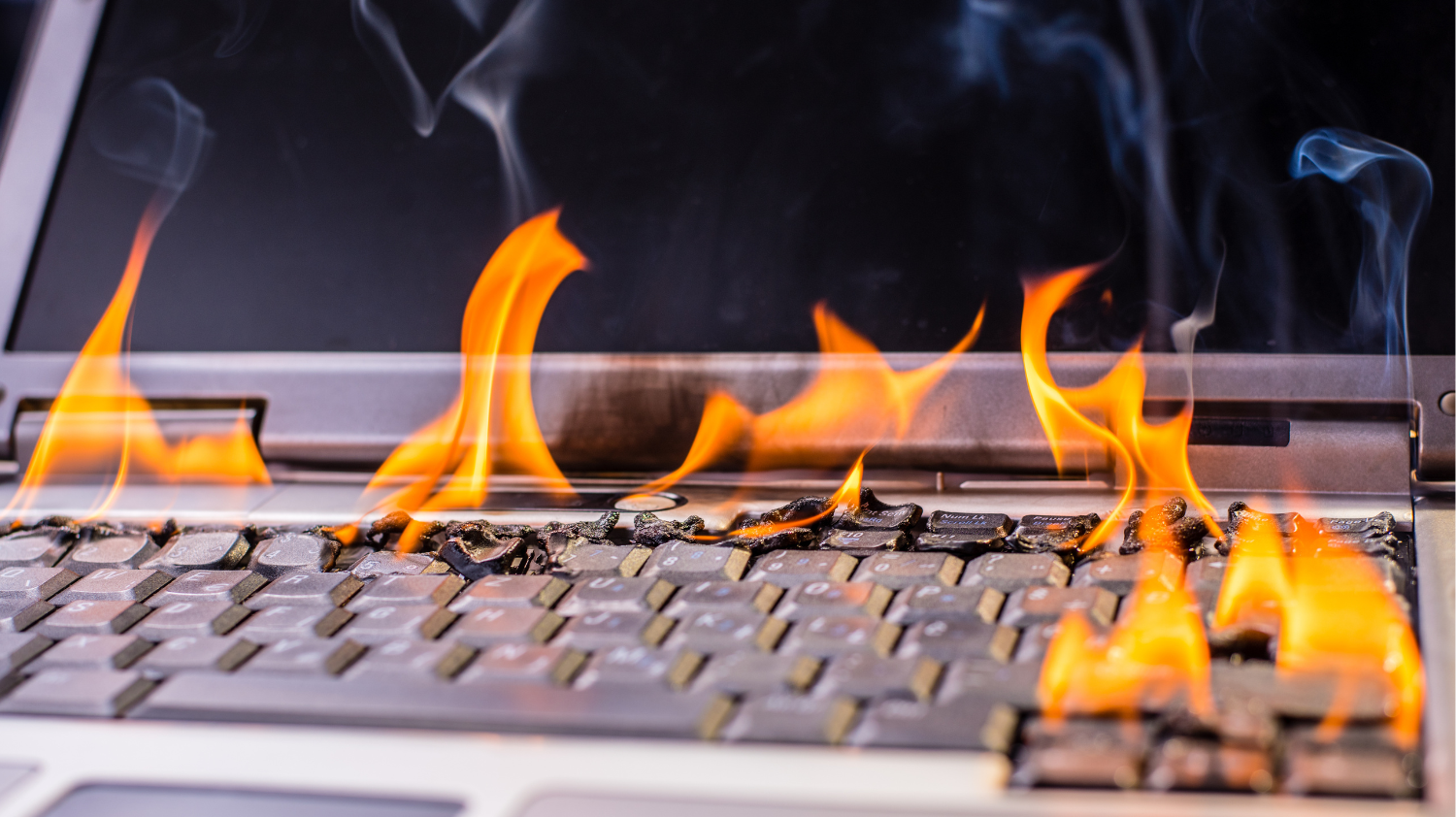
Most people notice laptop overheating as an annoyance — a hot keyboard, a loud fan, a machine that slows to a crawl after 20 minutes of video editing. What's less obvious is what's happening inside the device and why those symptoms often indicate a problem that will keep getting worse unless something is done about it.
This article walks through the mechanics of laptop thermal management, explains the common reasons systems fail to keep temperatures under control, and describes what a proper fix actually involves. The aim is to give you enough context to understand whether the problem is cosmetic, manageable, or something that warrants a proper assessment.
How Laptop Thermal Management Works
A modern laptop processor generates a significant amount of heat during operation — often 15 to 45 watts continuously during demanding workloads, and more in brief bursts. That heat has to go somewhere. The thermal management system is the chain of hardware responsible for moving it from the processor die to the outside air.
The standard arrangement involves a copper heat spreader on top of the processor die, a thermal interface material (TIM) between the die and the heatsink base, a copper or aluminium heatsink conducting heat away from the source, a heatpipe or vapour chamber distributing that heat across a larger radiator fin stack, and one or more fans drawing air through those fins and exhausting it through vents in the chassis.
This system is designed to maintain the processor and GPU within an acceptable temperature range under expected loads. Most modern chips have a thermal junction maximum (TJ max) somewhere between 95°C and 105°C, though sustained operation near those limits accelerates component ageing and triggering of protective mechanisms.
What Thermal Throttling Actually Does
Thermal throttling is the processor's self-protection mechanism. When junction temperature approaches the defined limit, the chip reduces its clock speed and voltage to generate less heat. The result is a measurable performance drop — sometimes subtle, sometimes severe enough to make demanding tasks feel like they're running on a device several years older.
It's worth being clear about what throttling is not: it's not a repair. It's the device operating in a degraded state to avoid self-damage. If your laptop throttles regularly under loads that should be normal for its specification, the thermal system is not working as it should.
Common Causes of Overheating
1. Blocked Fan and Heatsink Fins
Over time, dust accumulates in the fan blades and heatsink fin stack. The fins become partially blocked, airflow is reduced, and the heat that should be leaving the chassis stays inside it. This is the most common cause of overheating in laptops three or more years old, and it's often straightforward to address — though it does require opening the device.
An important distinction: simply blowing air into the vents with a can of compressed air rarely solves this properly. The dust compacts further into the fins or redistributes inside the chassis. The heatsink assembly needs to come out, be cleaned properly, and the thermal paste needs to be replaced at the same time.
2. Degraded Thermal Interface Material
The thermal paste or pad between the processor die and the heatsink base degrades over time. It dries out, cracks, or pumps away from the contact area as the device heats and cools through thousands of cycles. When the TIM degrades, the thermal connection between die and heatsink worsens, and temperatures rise even if airflow is fine.
In our experience, thermal paste replacement alone can lower sustained CPU temperatures by 15–25°C on devices where the compound has dried out significantly. This is typically something that needs doing every three to five years on a laptop used regularly.
3. Fan Failure or Reduced Fan Performance
Fans wear out. The bearing degrades, the blades accumulate uneven dust loading, and the motor draws more current to achieve the same speed — or can no longer achieve it at all. A partially failed fan often sounds different: louder, with a grinding or rattling note, or intermittently varying in speed. A fully failed fan produces no airflow and will cause the device to shut down rapidly under load.
Fan replacement is generally a component swap, but on some ultrabooks the fan and heatsink are integrated into a single assembly, which changes the scope of the job.
4. Thermal Pad Issues on Secondary Components
Modern laptops use thermal pads between the motherboard and various secondary chips — the GPU, VRAM chips, voltage regulators, and sometimes the SSD. These pads can degrade or compress unevenly over time. On gaming laptops in particular, the VRAM thermal solution is often marginal from the factory, and pad degradation can cause memory temperature problems even while CPU temperatures look acceptable.
5. Power Management Faults
Less commonly, excessive heat is a symptom of something wrong in the power delivery circuitry rather than the cooling system. A faulty power management IC, a shorted bypass capacitor, or issues with the CPU's voltage regulation module can cause the processor to draw significantly more power than it should, overwhelming an otherwise functional cooling solution.
This is distinguishable from standard thermal degradation because the temperatures will be very high even at idle or low load, and the problem often appeared suddenly rather than gradually worsening over months. It requires a different approach to diagnose and fix.
What a Proper Thermal Service Involves
A comprehensive thermal service is more than a quick clean. It should include disassembly to access the heatsink assembly, removal of the heatsink from the processor and GPU, proper cleaning of all heatsink fins with a brush and compressed air, removal of the old thermal compound from both the die and heatsink base, inspection of the contact surfaces for damage, application of appropriate fresh thermal compound, inspection and replacement of any degraded thermal pads on secondary components, fan inspection and cleaning, verification of fan speed control via software, and thermal testing under load after reassembly.
The quality of the thermal compound used matters more than the marketing around it. Mid-tier compounds from established manufacturers perform adequately; exotic liquid metal compounds can perform better but are not appropriate for all configurations due to electrical conductivity risks.
When Cleaning Isn't Enough
In some cases, a thermal service resolves the problem entirely. In others, temperatures improve but remain higher than expected for the device's specification. This can indicate a heatsink that has developed poor contact across its base due to chassis flex, a warped heatsink base from previous overheating events, or a chip that has sustained electromigration damage from extended high-temperature operation.
If temperatures remain elevated after a proper thermal service, the next step is to use infrared thermal imaging to map heat distribution across the board and identify whether there are hotspots associated with specific components that are independent of the cooling system's performance.
A Note on Consumer-Level Interventions
Undervolting — reducing the processor's core voltage via software — can reduce heat output meaningfully on some platforms. It's a legitimate technique worth trying before seeking a service, particularly on Intel 10th and 11th generation CPUs which were often shipped with more thermal headroom than they needed. Newer platforms have reduced the room for undervolting, but it remains worth checking whether the option exists on your device.
Laptop cooling pads, similarly, can provide marginal benefit by reducing ambient temperatures around the device's intake vents. They're unlikely to resolve a problem caused by blocked fins or degraded paste, but they may provide enough thermal headroom to make a mildly overheating device usable while a service is arranged.
Summary
Overheating is almost never a permanent hardware limitation. In the large majority of cases, it's a maintenance issue — dust accumulation, degraded thermal compound, or a failing fan — any of which can be addressed. In a smaller number of cases it points to a deeper problem that requires component-level assessment. Either way, thermal throttling indicates a system that isn't operating correctly, and leaving it unaddressed accelerates wear on every component in the thermal path.
If your device is running hotter than it used to, or throttling under loads that previously ran without issue, it's worth getting it looked at properly rather than waiting for the situation to deteriorate further.
Have an Overheating Laptop?
Describe the symptoms to us and we'll advise whether a thermal service, a more detailed diagnostic, or something else makes sense for your situation.
Contact the Workshop